
How to write code with AI 2024 Guide Part 1: Debugging
A personal guide to my workflow and the tools I use for debugging


The release of large language models has fundamentally changed how I write code. I don’t know when it happened but at some point last year I wrote my last line of code not touched with AI. A lot of programming is tedious and certainly not fun, it consists of repeating patterns required to set up a problem. Boilerplate code is everywhere, it has to be above 50% of the actual characters I write which takes a toll on my fingers and wrists. AI models have the power to eliminate that work forever. In this guide, I will discuss the main technologies I use to help achieve that goal and provide steps for you to do the same today.
Today I primarily use two or three technologies to get contextually relevant code generation. I started like most people with chatGPT. GPT is very effective at 3 primary tasks, understanding problems, getting quick answers, and generating succinct solutions. The challenge is it lacks a greater context into what other files or code are in your project. Enter Github Copilot a solution built into your code editor. Now some people may be familiar with copilot’s auto-completion feature, however, a much more helpful feature is the chat system. Copilot chat makes it easier to feed context into your prompts and therefore shares GPT’s effectiveness with some added understanding and convenience. The latest version introduced a new tag “@workspace” which if used when prompting Copilot enables the chat agent to look at your repo and use any files it deems relevant. The workspace agent represents a massive increase in contextual relevance in the responses. Finally, SourceGraph Cody supports similar features to Copilot with added commands to support code generation. The keyboard shortcuts combined with the advanced context system in Cody make it the front-runner for code generation.
Favorite AI Tools for debugging in order
Sourcegraph Cody (My recommendation)
The good:
Excellent ability to implement the fix in my code.
Support for Claude 2 and GPT 4 and local LLMs
Easy-to-use system for adding code files to context
The bad:
Lacks understanding of the file structure of my repo
Works better with careful prompting and understanding how it works ( skill issues)
ChatGPT
The good:
Internet access allows it to search for solutions online.
Very flexible since you have to provide all the context and prompt
The bad:
Expensive compared to others on the list
Not in your code editor
Requires well-thought-out prompting including adding all required context manually
Github Copilot
The good:
@ workspace modifier does understand your file structure.
Chat agent is a little bit more complex than Cody allowing it to sometimes get contextually better solutions
Funded by Microsoft'
The bad:
Does not handle in editor fixes as well as Cody
lacks advanced features of Cody
Prompting chatGPT for Debugging
ChatGPT is a powerful tool for code generation, especially when used with well-crafted prompts. By leveraging its capabilities through thoughtful prompting, developers can unlock its ability to understand complex problems, generate concise solutions, and provide insightful explanations.
Let’s start by talking about context as it relates to Large language models (LLM). Context or the context window, as it is referred to, is how much input and output an LLM can understand and handle. Context is generally calculated in the form of “tokens” which are a form of broken-down sets of characters. I generally think about tokens as similar to word count although technically it’s broken down into sets of characters. There are some nice Python scripts to calculate tokens if you want to get a more specific understanding. The key point to understand is that when you ask any LLM like ChatGPT a question it breaks your prompt into tokens and generates a specific up to a maximum number of tokens as a response. The maximum token number is the LLM Context window, which includes both the prompt and the response. ChatGPT also uses your previous chat messages to some degree as part of the context allowing it to “remember” things from earlier in the conversation. however, if something you want the LLM to remember is too far back in the conversation, it will be left out of the context window and therefore be forgotten. To generate relevant responses, it is important to understand how the context window can limit the memory or response length.
ChatGPT is highly effective when you minimize the context window to only the most relevant context. Doing this requires providing exactly the right context in your prompt. Due to the context constraints, I primarily use chatGPT to decode and explain error messages and do code reviews. Error messages can be complex to understand since they require a lot of tech-stack-related understanding. LLMs are perfect for this use case since they are designed to understand text inputs (prompts) and convert them into natural language. Sometimes due to the training data provided the LLM can provide extremely specific fixes for errors based on its pre-trained understanding. I recommend pasting any error message you don’t immediately understand into an LLM.
When using GPT 4 for error messages I recommend prompting with
“Search the web for this error, and explain how to fix it”
Another helpful prompt that seems to improve LLM’s reasoning capability is to ask it to explain its reasoning in steps. This forces the response to have more detailed reasoning upping the quality of the response.
"Please explain how to fix this error message. Begin by outlining your process for understanding the message, and then provide steps to troubleshoot and resolve it."
More complex problems require greater context to solve. Frequently I will paste functions and type definitions into the prompt before asking GPT for my desired output. I find that generating whole files with chatGPT is only effective when the files are very small and generally prefer to chunk out sections myself to maximize the relevance of the output. When using GPT for debugging I will try to maximize the context as much as possible. GPT 4 has a much larger context window than previous models and can support pasting full React components along with your error message. I recommend combining some of these techniques to see which are most effective for your codebase.
Sourcegraph Cody
Sourcegraph out of the box has everything you need to do both code generation and more complex debugging. It offers some auto-completion and Chat like Copilot however its context system is more advanced in certain ways. Its chat feature allows you to specify specific files as context by “@” tagging the file names. Sourcegraph also uses an embeddings-based retrieval system which can often produce more accurate responses without needing to specify context yourself. Let’s unpack that the buzzword term “embeddings” references a specific technology popularized by LLM which involves using a specialized model to convert text into extremely high-dimensional vectors. Since these High-dimensional vectors (1000-2000 dimensions) are very unique it is possible to use fancy math to quickly find or “retrieve” all vectors similar to a search phrase. The AI industry refers to this as RAG or Retrieval Augmented Generation, where a request first retrieves all similar vectors and adds the context associated with them into the prompt. Using a system like this allows tools like Cody to find contextually relevant code fragments and feed them into your prompt automatically. Cody has a system that does this sort of retrievals on your local Codebase which can provide super relevant solutions based on your code and prompt.
Using Cody’s chat window is much better than using chatGPT because it has the added context of all your code in your editor. Cody Pro also supports multiple LLM models defaulting to Anthropics Claude-2.1. Claude is a highly advanced model with a context limit of over 200k tokens more than twice the limit of GPT 4. Having a greater context window allows a lot more context to be fed into your prompt making it potentially much stronger at generating completed code fixes. Now there is some research showing that if you feed a model too much context it can deteriorate the result. I therefore recommend limiting the context to just strictly necessary files or text. I am a fan of Claude although I suspect that GPT 4 is still better and general code-generation tasks.
When debugging using Cody chat I will typically follow these rough steps:
Specify the file where the bug is found using @ and the file name
Paste the error message into Cody's chat.
Prompt by specifying the Goal and how I want it to be achieved for example what technologies it should use:
“Explain how to fix this error message”
“Fix this Typescript error using a const in place of an enum”
“Fix this Async react issue using NextJs server components”
In addition to the advanced chat feature Cody also includes a very advanced set of editor commands that can be used for debugging. Generally using the edit command works better than chat since it can edit your code directly. It will also show you the diff allowing you to evaluate the solution faster than with chatGPT.
Select the full code block where the error is present and use the shortcut
shift + command + v ( Shift + Ctrl + v )
A small prompt window opens up directly over your code editor. Unlike the chat, in this window, Cody can directly make edits to your code based on your prompt. For debugging this means you can use the same prompts as above but Cody will completely fix your code. As with the chat window, it will use context from your codebase, and you can still reference specific files if you think they are relevant. I use the edit command very heavily now in my workflows since it’s extremely powerful and able to solve most common problems right away. For more complex solutions I recommend using the diff function to verify that the fixes suggested by Cody make sense. After all, LLMs are far from perfect and frequently make mistakes or eliminate code that is there by design
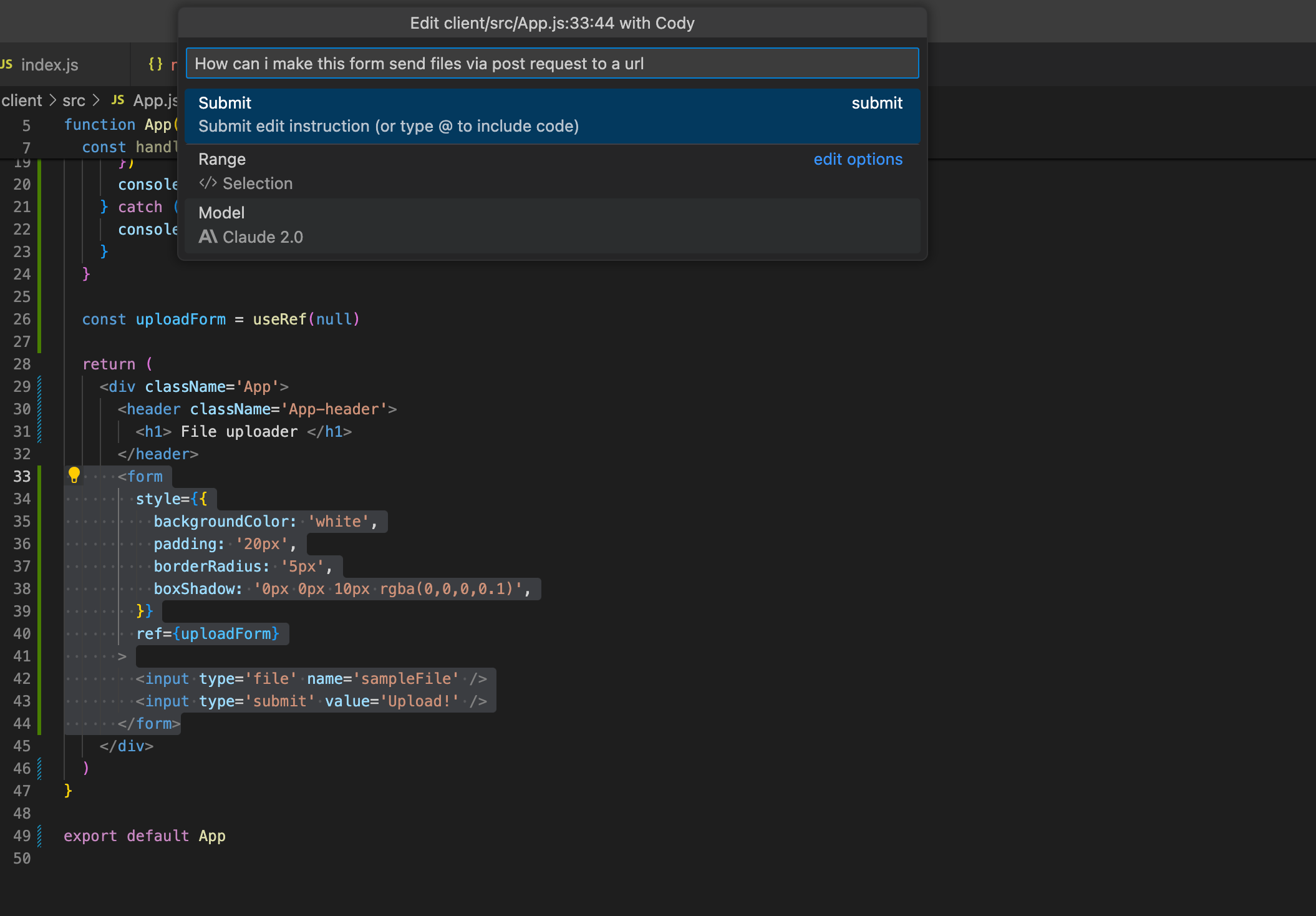
Some helpful tips for prompting the edit function
Select the function or code block where the error is present before calling edit. Otherwise, it will default to wherever the cursor is
Use comments in your code to offer additional explanations or steps for what the code is supposed to take but may not be working.
Write comments explaining the goal of the function above the code block and include them in your selected change.
When prompting specify the tools or technologies it is supposed to be doing
Avoid including files in your prompt unless they are for sure required.
I really love this edit command. I abuse the edit functionality every day making it solve the most common technical problems or even just asking it to add functionality. Cody’s features make me want to use it and highly recommend it even over my next option Copilot.
Using Copilot for debugging
Github Copilot offers some key benefits over using chatGPT, primarily it’s in your code editor making it more convenient to use. It also allows you to feed context into your prompts by selecting code in your editor to use as context. The most important feature to make sure you are using is Copilot Chat. Copilot’s Chat feature needs to be installed separately. I have been a super early adopter of Copilot which has necessitated the use of VsCode insiders the beta built of VsCode. I recommend you install it as well which will give you access to all the newest features Copilot is working on.
Copilot Chat uses GPT 4 and allows you to prompt directly in the chat window which more than just being convenient allows you to be more selective with what context you feed it. Additionally, Copilot can give you highly contextual responses beyond your specifically included context with the use of the “@workspace” chat modifier. ALWAYS use the “@workspace” modifier. A better question to ask is when does your prompt lose benefit from the added context from your workspace? There are occasions where workspace context just adds superfluous data, for example, if you ask questions about languages or request code unrelated to your codebase.
Use the @workspace modifier in Copilot chat prompting
Another nice feature of Copilot which is available on pre-release is the custom “fix” command. Rather than needing to prompt the chat window, you can simply right-click an error in the code editor and Copilot will have an option to “Copilot fix” which will generate an auto-completion based on the error message attempting to directly fix the problem. Debugging using the custom fix can also be convenient but the more complex the error the more of a challenge Copilot has at generating a fix. Overall Copilot is a huge step in the direction of fully automated code editor-based debugging. Utilizing the @workspace feature and ensuring you are on the absolute latest version will lead to the best results.
Conclusion
In conclusion, using in-editor tools like Cody or Copilot saves a ton of software development time. Gone are the days of searching through multiple Stackoverflow articles trying to find a solution to a problem similar to yours. Having an LLM explain and advise makes us faster and more effective programmers. I continue to recommend Sourcegraph Cody for its advanced retrieval system and convenient direct code-fixing capabilities. For more specific advice and training feel free to contact me through my website. I am happy to offer more personalized advice and training based on your needs.